Help
Everything's configurable two ways — Discord slash commands, or this dashboard — reading and writing the same data. This page walks through the dashboard; the slash command reference is at the bottom.
Quick start
- Log in at the top of the dashboard, then add the bot to your server if it isn't already there.
- Open the server → Panels → create a panel, then add at least one category to it.
- On the panel page, pick a channel and hit Send — that posts the embed with its button (or select menu, for more than one category).
- Members click through to open a ticket. You're done — everything else is optional tuning.
Your servers
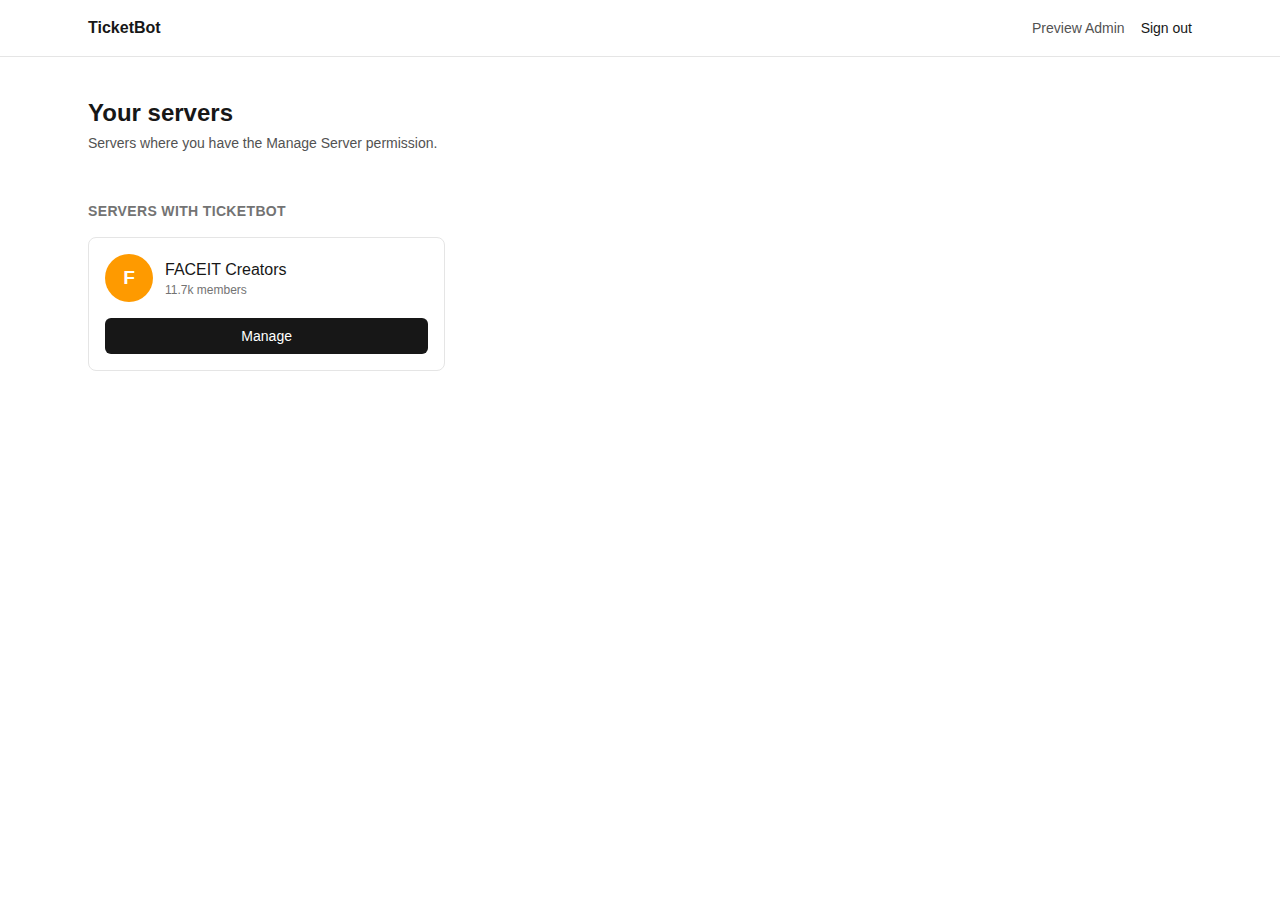
The dashboard only lists servers where you have the Manage Server permission, split into servers that already have the bot (click Manage) and ones that don't yet (click Add to Discord).
Server overview
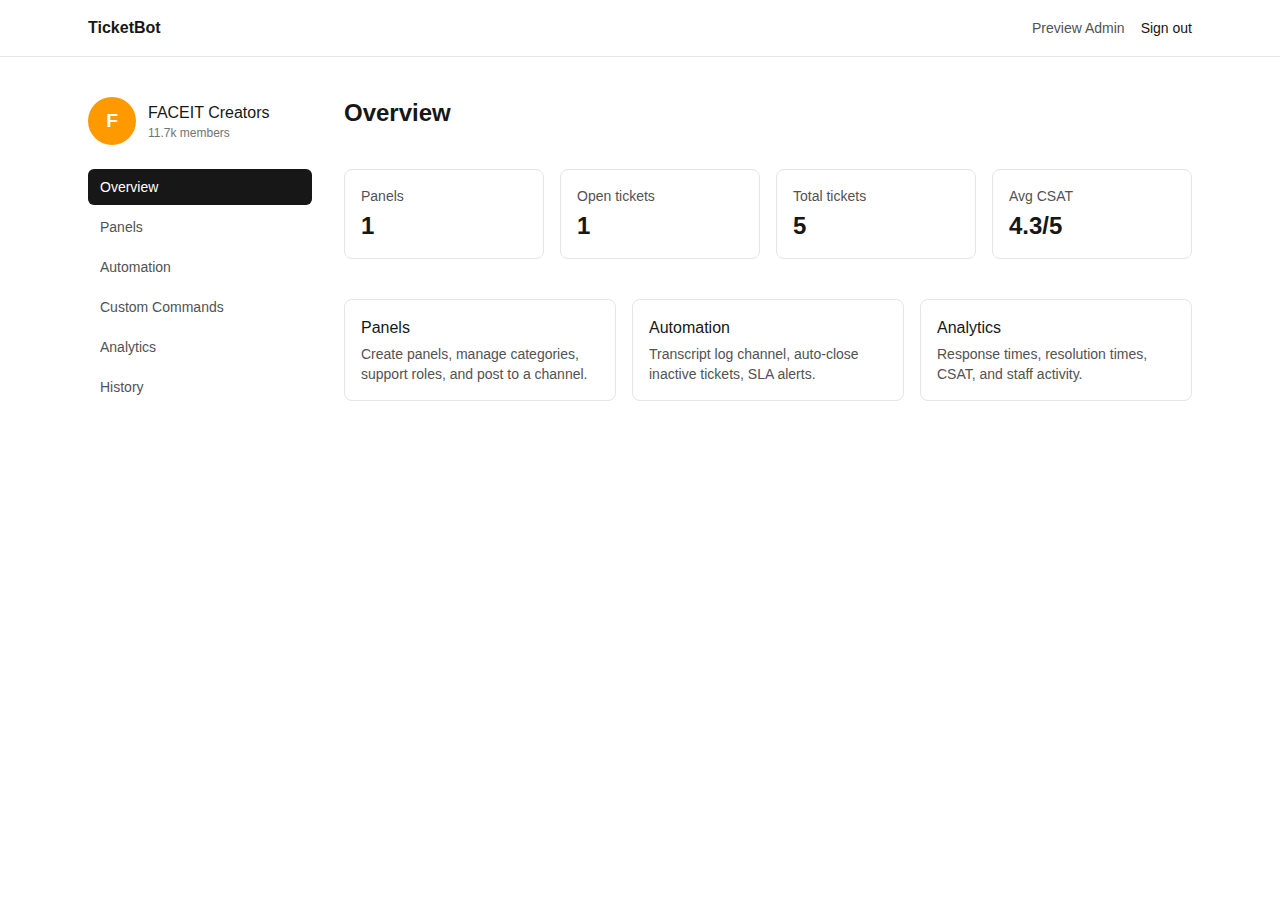
A server's landing page: headline stats (panels, open/total tickets, average CSAT) and shortcuts into the other sections. The left sidebar — server icon, name, member count, then the section list — stays the same across every page for that server.
Panels & categories
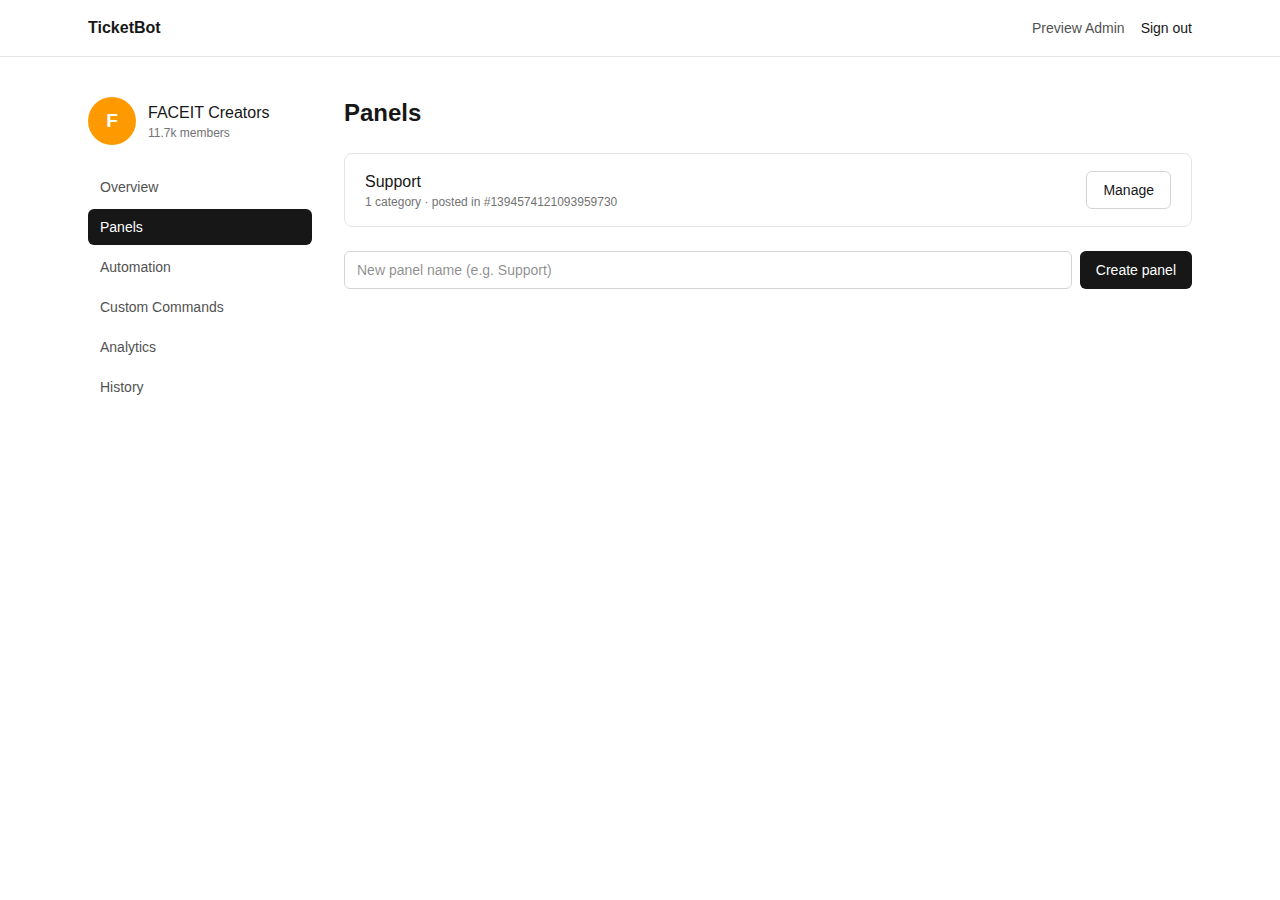
A panel is the embed + button/select menu you post in a channel. Each panel has one or more categories — a category is one type of ticket (e.g. "Billing", "Bug Report"), each with its own settings:
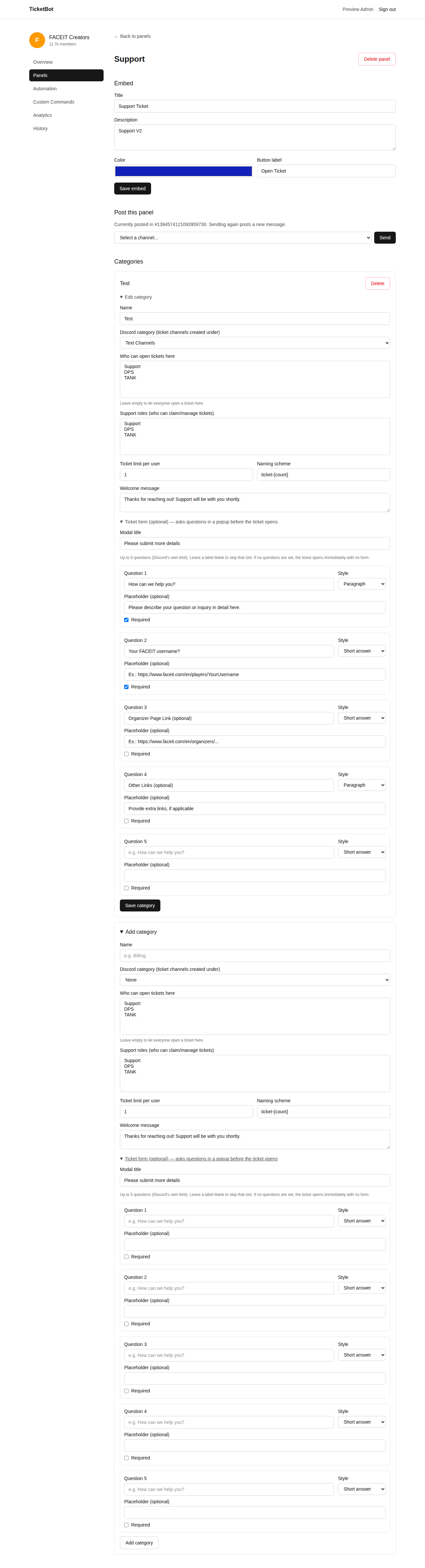
- Who can open tickets here — restrict to specific roles, or leave empty for everyone.
- Support roles — who can claim/close/manage tickets in this category (independent from who can open one).
- The Discord category ticket channels are created under, a per-user open-ticket limit, channel naming, and the welcome message.
A panel with exactly one category posts as a single button; more than one posts as a select menu.
Ticket forms
Any category can optionally ask up to 5 questions in a popup before the ticket channel is created — Discord's own modal limit. Leave every label blank and the category behaves as before: the channel opens immediately with no form. Answers get posted as fields on the ticket's welcome message.
Browsing tickets
The Tickets section lists every ticket ever opened in the server — category, opener, status, who claimed it, who closed it (and their close reason, if they gave one), timestamps, and CSAT rating — filterable by status and category. Useful for checking what staff are actually doing, not just the aggregate numbers on Analytics. Click a ticket's number to jump to its channel in Discord (if it hasn't been deleted).
Automation
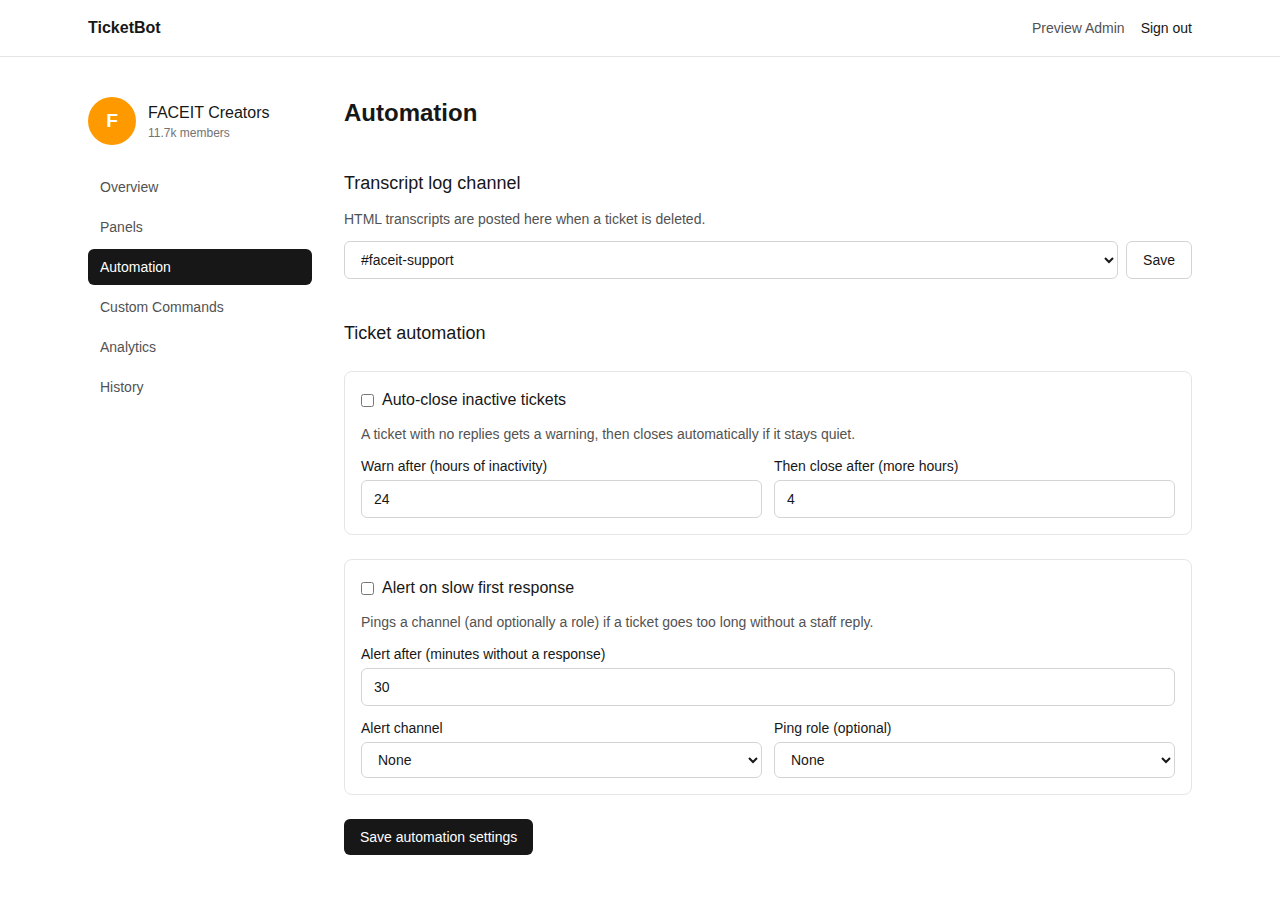
Two independent, opt-in behaviors, both off by default:
- Auto-close inactive tickets — a quiet ticket gets a warning after N hours, then closes automatically M hours after that if still quiet. Any reply cancels the warning.
- Alert on slow first response — pings a channel (and optionally a role) if a ticket goes too long without a staff reply.
The transcript log channel (where HTML transcripts land when a ticket is deleted) lives on this page too.
Custom commands
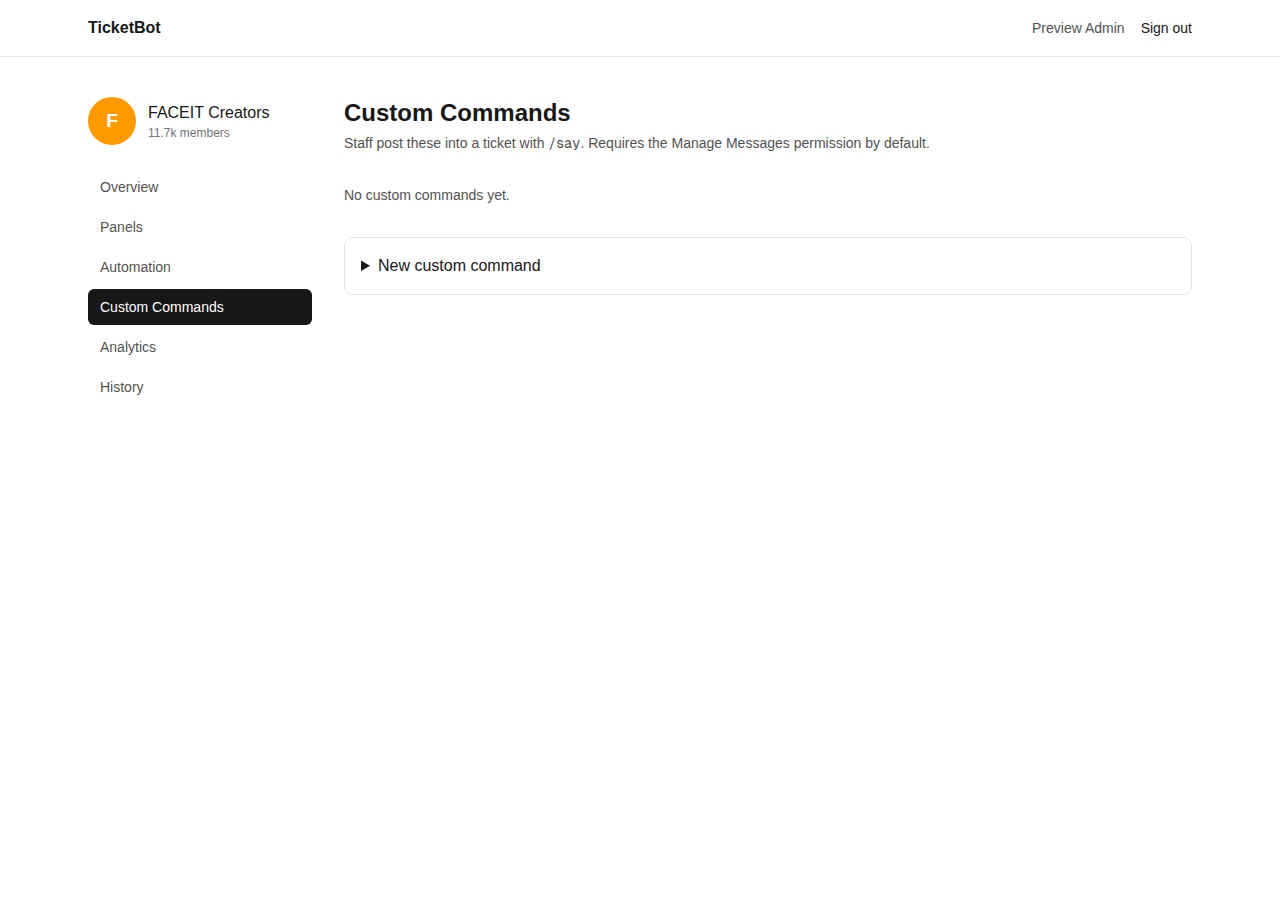
Save reusable reply snippets, optionally grouped into folders, and post one into a ticket any time with /say in Discord (autocomplete searches by name or folder). Useful for answers your team gives often — requires the Manage Messages permission by default.
Analytics
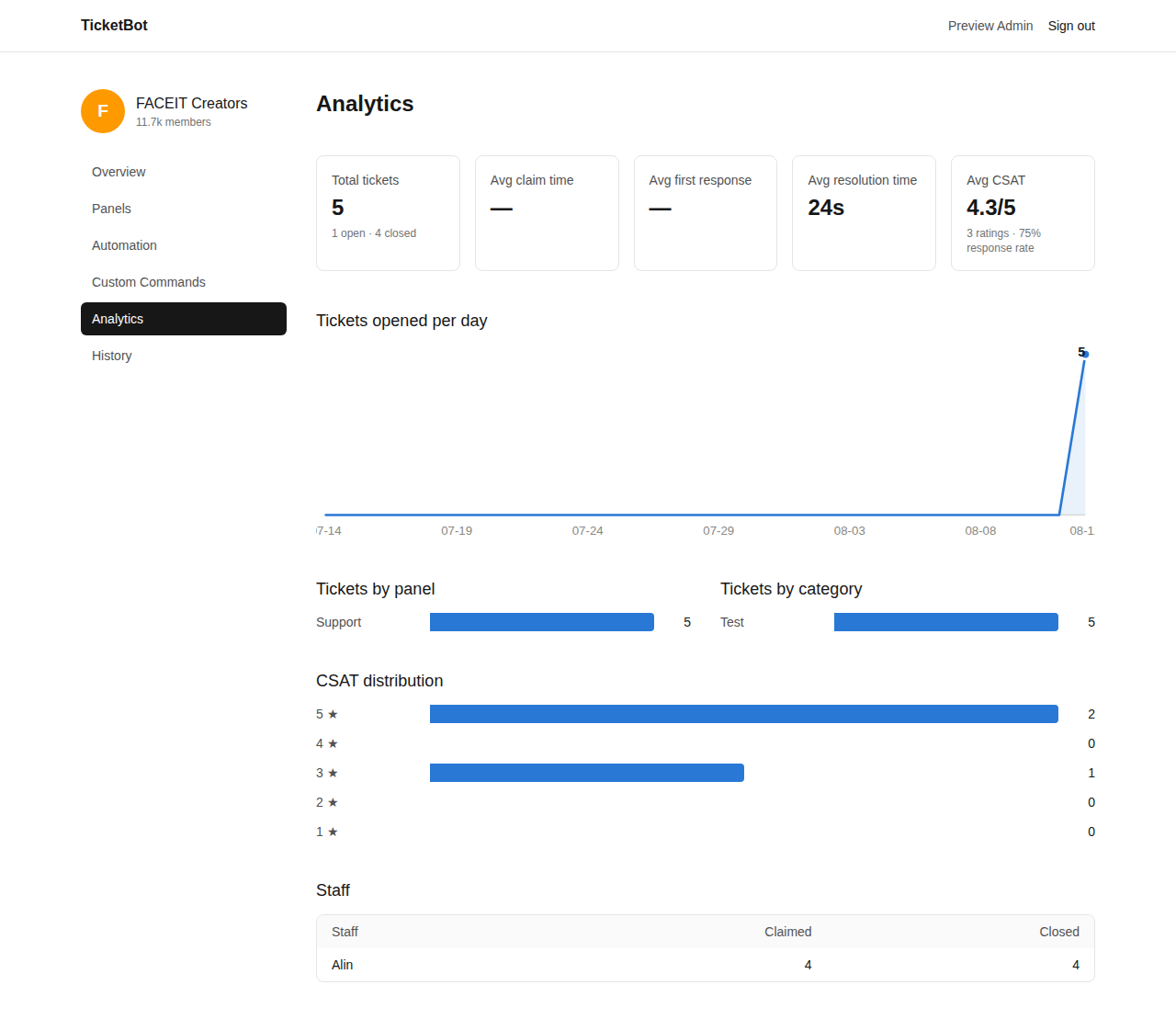
Ticket volume over time, average claim/first-response/resolution time, CSAT (the opener is prompted to rate 1–5 right after a ticket closes), tickets broken down by panel and by category, and a staff leaderboard of who's claimed/closed the most.
History
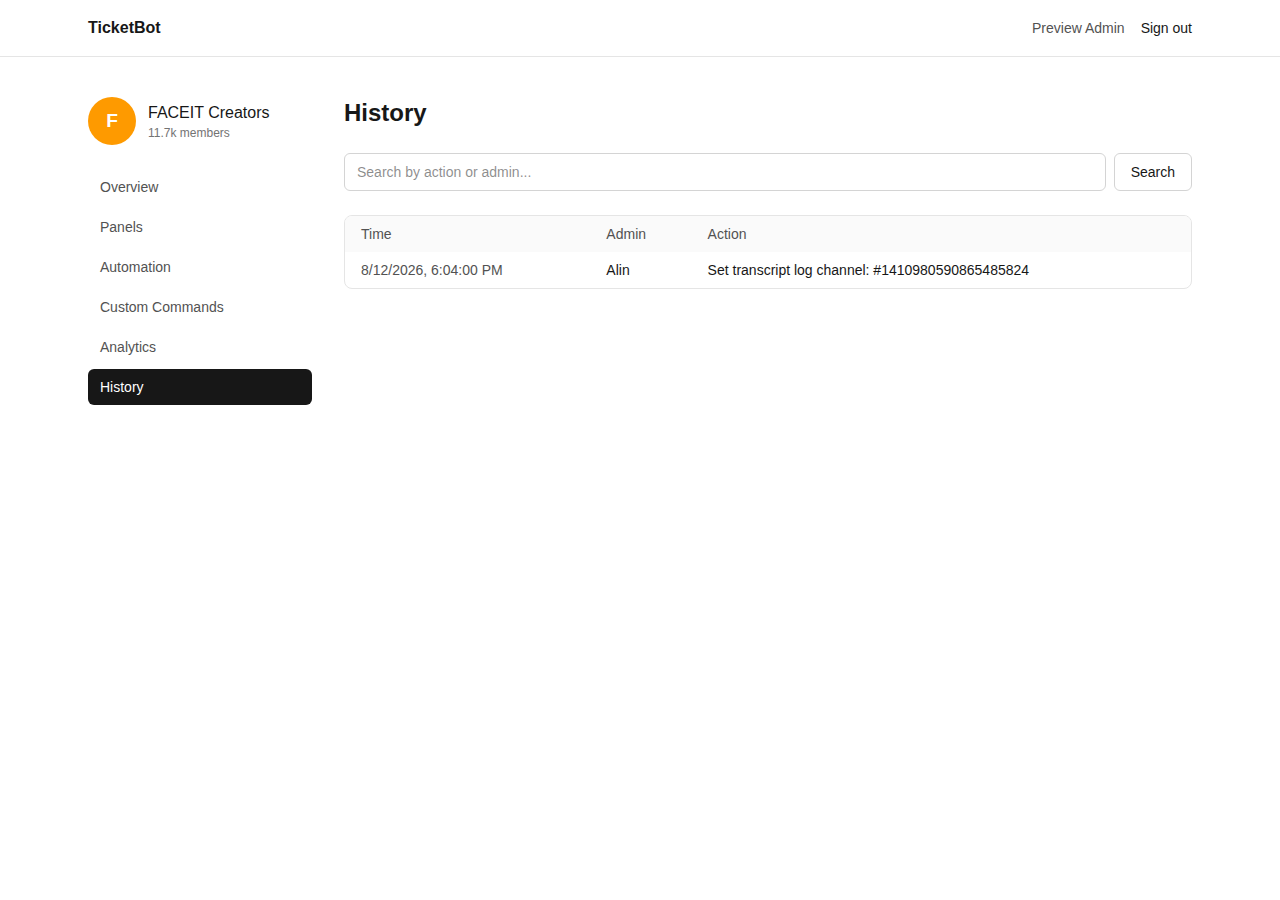
Every config change made from this dashboard — panels, categories, automation settings, custom commands — is logged here with who did it and when. Search by admin name or action text.
The ticket lifecycle
However a ticket gets opened (button, select menu, with or without a form), what happens next is the same:
- A private channel is created, visible to the opener, that category's support roles, and admins.
- Staff use the Claim / Close buttons on the ticket (or
/ticket claim|close|add|remove). - On close, the channel locks and the opener is asked to rate the support 1–5 — that's what feeds CSAT in Analytics.
- Reopen or Delete from there — deleting saves an HTML transcript to the log channel (if one's set) before removing the channel.
Slash command reference
Everything below has a dashboard equivalent except /say (which is Discord-only by nature — it posts into whatever channel you run it in).
| Command | What it does |
|---|---|
| /panel create|delete|list|send|edit | Create/manage panels and post them to a channel |
| /panel category add|remove|role-add|role-remove|open-role-add|open-role-remove | Manage a panel's categories and their permissions |
| /ticket claim|unclaim|close|add|remove | Manage the ticket in the current channel |
| /config log-channel|view | Set the transcript log channel / view current config |
| /say <command> | Post a saved custom command into the current channel |